Partition-to-disk bridged disk device map an entire partition to an iSCSI disk device. iStorage server will apply system’s default file system to iSCSI device. For example, the partition is using FAT32 file system, the according partition-to-disk bridged disk will also use FAT32 file system. User cannot change the file system other than partition’s original file system.
Creating A Disk Partition Device
Follow the steps below to create a new image file:
Step 1. Select Service-> Create Target from the Service pop-up menu On the main interface of iStorage Server .
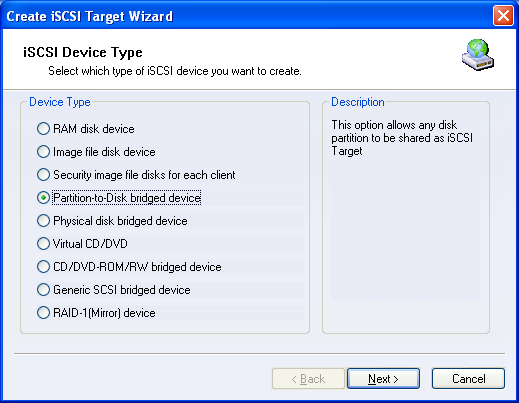
Choose 'Partition-to-Disk bridged device' on the Select
Device Type Group.
Press the 'Next' button to continue.
Step 2. Configure the Partition Bridged Device.
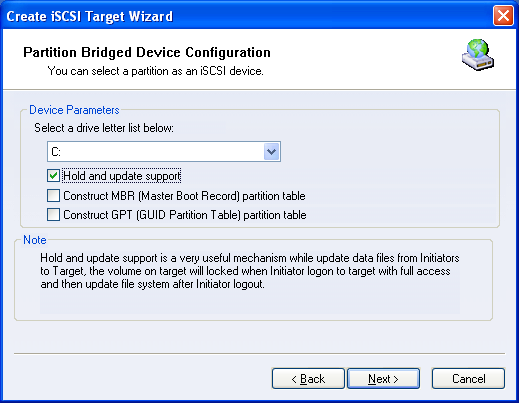
There are three option for choosing:
1, Hold and update support, see Update data files
from initiators to target for more information.
2, Construct MBR partition table, this option is used for create a disk device
which contains a partition of the shared partition and partition table is Master
Boot Record. This partition table can be used in a variety of windows versions,
but the max size is 2T.
3, Construct GPT partition table, this option is used for create a disk device
which contains a partition of the shared partition and partition table is GUID
partition table. This partition table can only be used in Windows XP x64,
Windows 2003 x64, Windows Vista and above.
The disk created by MBR or GPT method can't be re-partitioned, because the
partition table is fixed.
If none of MBR and GPT partition table construction is selected, the mapping
method is RAW, the mapping disk can be re-partitioned.
Step 3. Set the Authorization Mode.
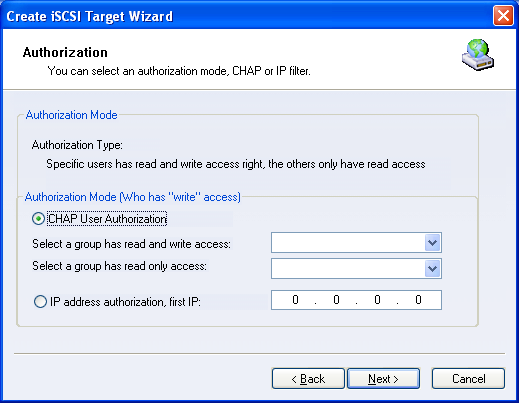
There are two levels of accessing permission: read and write permission and read-only permission.
CHAP User Authorization : For read and write permission, select one user group who can be granted full read/write access to the iSCSI device. For read only permission, select another user group.
Specific IP address authorization : User can also choose another authentication type, 'specify IP address' has write access. In this case, the user from specified IP can write the iSCSI device. All other users can only get read-only permission.
To create a new group , See add a group description
Press the Next button to continue.
Step 4. Type the Target Name.
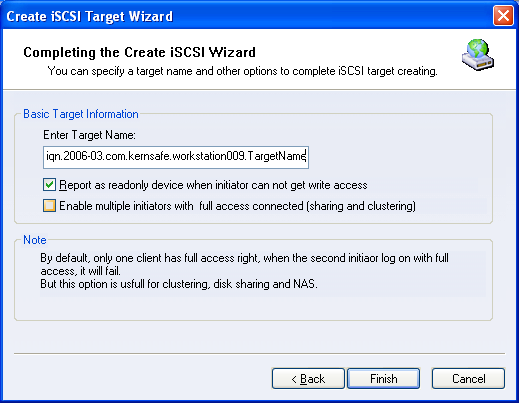
Press the Finish button to completing the iSCSI device creation.