
iStorage Server Online Help

| Create iSCSI device | KernSafe iSCSI SAN User Manual |
|
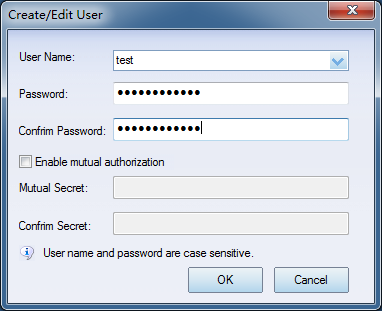
KernSafe iSCSI SAN is an IP storage platform that lets you publish local server storage as iSCSI devices for remote initiators over the network. A typical deployment has three steps: create CHAP users and groups, choose the storage media to export, and create the iSCSI target mapping. After the target is created, users can connect to it through any standards-based iSCSI initiator. Create CHAP users and groups Create at least one CHAP user account and one user group before you use CHAP authentication. The default secret key is 123456781234. For example, you can create a user named "test" and a group named "Administrators". To create a user account, select the Users item in the left tree, right-click in the right pane, and choose New User.... In the dialog box, enter the user name and password.
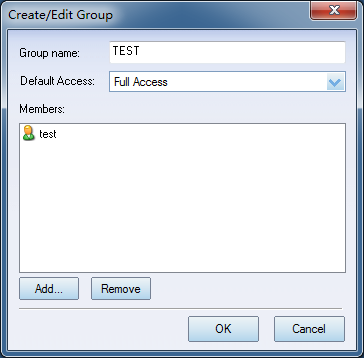
Creating a user group is similar. Select the Groups item in the tree, right-click in the right pane, and choose New Group.... In the dialog box, specify the group name and click Add to include the required users.
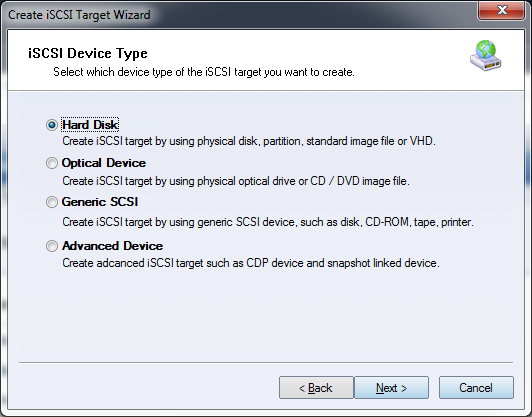
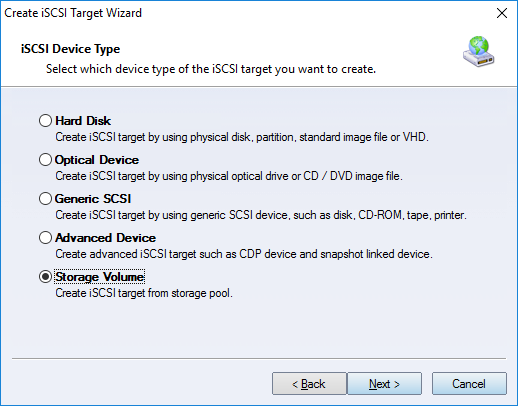
Create iSCSI device Click the Create button in the main window to launch the Create iSCSI Target Wizard. The wizard lets you create targets from the following device types.
The following device types are available: 1. RAM Space
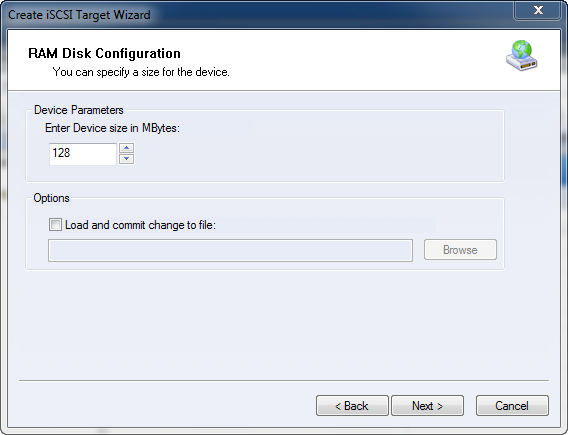
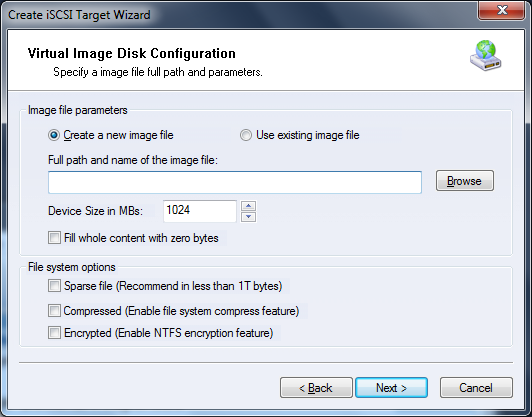
Specify how much memory should be allocated to the RAM disk. 2. Standard Image File A standard image file device is backed by an image file stored on the server's local disk. You can create a new image file or load an existing one.
If you use an existing image file, simply browse to the file and open it. To create a new image file, specify the required capacity. The following options are available:
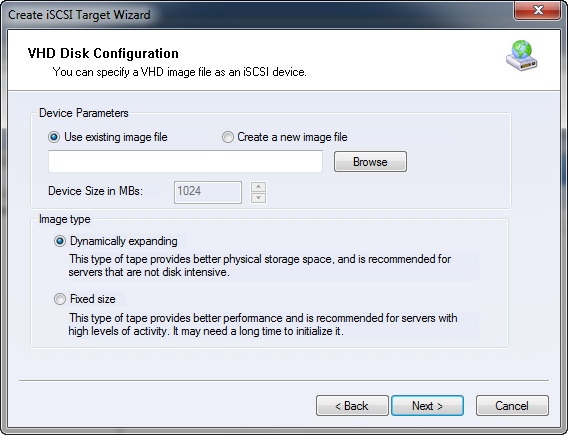
3. Virtual Hard Disk (VHD and VHDX) Image File
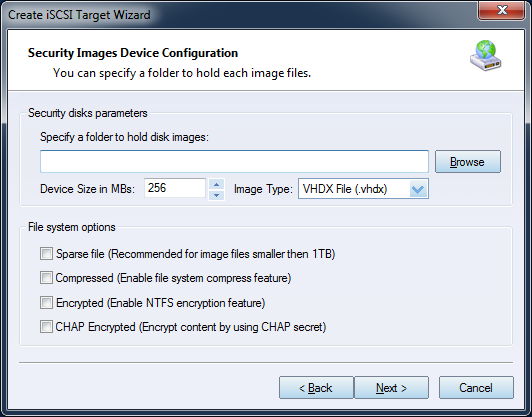
This option is similar to the standard image file, but it uses a VHD or VHDX container. These disk images support snapshot operations and can be created as either dynamically expanding or fixed-size files. 4. Security Images A security image device is based on encrypted image files. Each user receives an individual image file, stored separately on the server. This design protects sensitive data and isolates one user's data from another user's data.
To create a security image device, select a working path and specify the disk capacity. Each time a new user logs on to the server, the corresponding disk image is created automatically in the configured working path. There are several options to choose from:
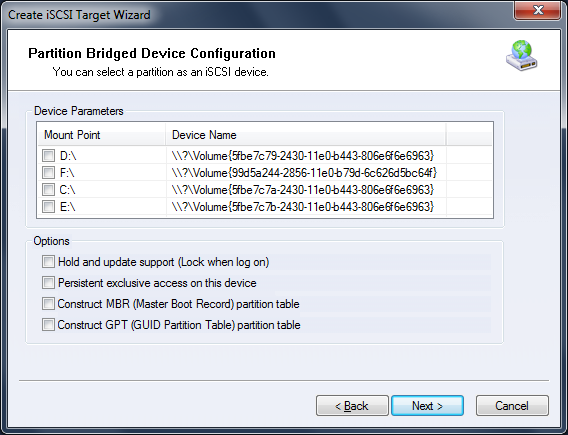
5. Disk Partition A disk partition device maps an existing server partition to an iSCSI disk device. The entire partition is exported to authorized initiators.
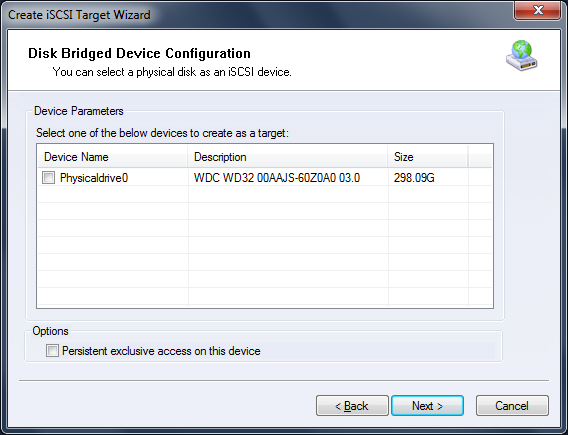
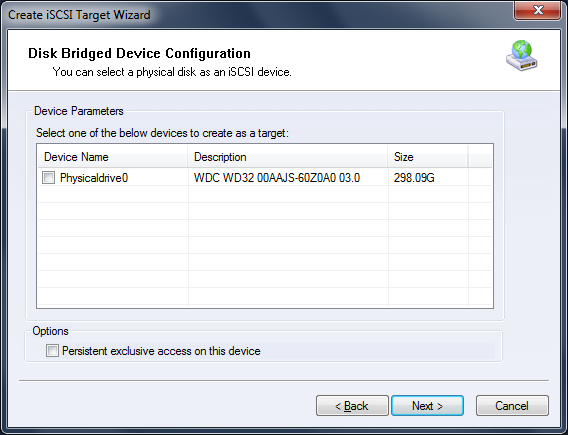
To create a disk partition device, simply select the partition on the server. 6. Physical Disk A physical disk device maps an entire physical hard disk on the server to an iSCSI disk device.
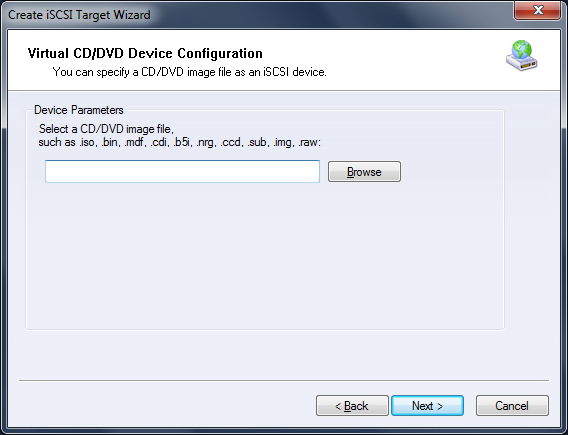
To create a physical disk device, select the required disk on the server. 7. Virtual Optical Drive A virtual CD/DVD device is backed by a CD/DVD image file on the server. The image is exposed to initiators as a virtual optical drive. Common formats such as .iso, .bin, and .mdf are supported.
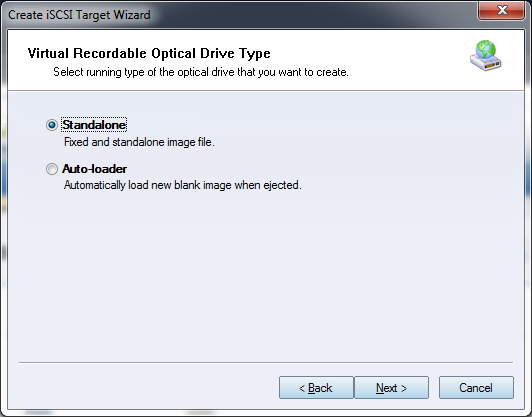
8. Virtual Recordable Drive This feature creates a virtual CD/DVD-RW burner that is exported as an iSCSI target. Clients can burn data directly to ISO files. You can choose a standalone file or an auto-mounted file. A standalone file remains in the drive after burning finishes, while the auto-mounted option automatically loads a blank ISO after each completed burn.
9. Physical Drive A physical drive device maps a local CD/DVD drive, such as an ATA, IDE, or SCSI CD/DVD/RW-ROM, to incoming users. Each connected client sees a new optical drive in the operating system.
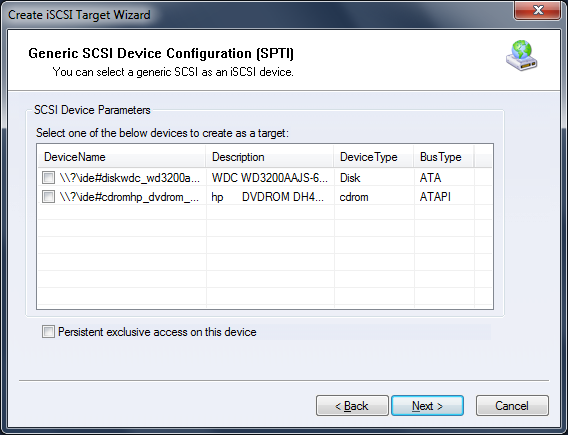
10. Generic SCSI Any standard SCSI device, such as a hard drive, optical scanner, tape drive, or high-speed printer, can be exported through KernSafe iSCSI SAN. The Generic SCSI bridge creates a virtual iSCSI device that forwards commands to the selected local SCSI device.
Select the physical SCSI device on the system to create the virtual Generic SCSI device. 11. Storage Volume Storage Volume creates an iSCSI target directly from a volume in Storage Pool. It is appropriate when you need pooled capacity, snapshots, and thin provisioning through the SDS storage layer.
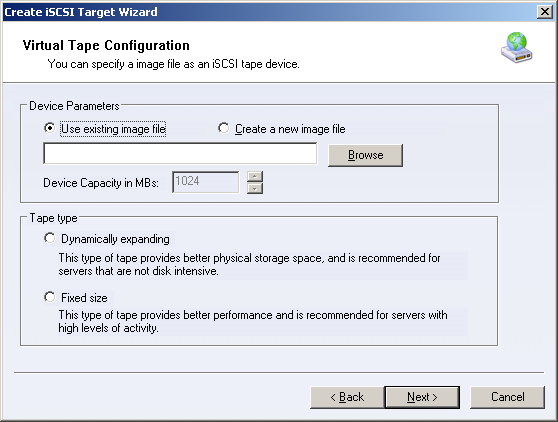
12. Tape Tape devices let you create an iSCSI tape target from a virtual tape image, a physical tape device, or a physical disk used as a VTL backend.
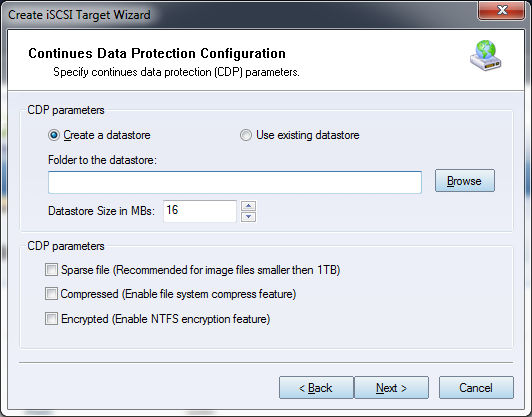
13. CDP Continuous Data Protection (CDP) creates a target that is backed up continuously. After CDP is configured, you can restore data to any protected point in time without additional configuration.
14. Snapshot Linked Target A snapshot linked target simplifies snapshot creation for an existing target by linking the new target to the original device.
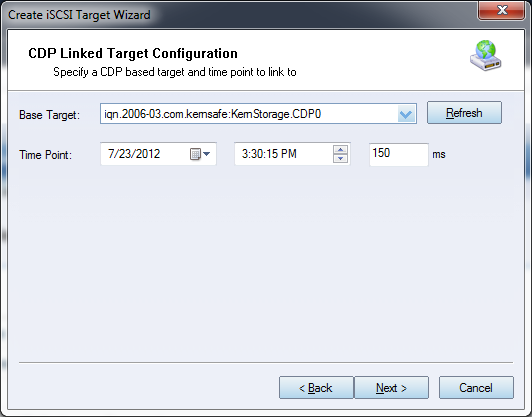
15. CDP Linked Target A CDP linked target simplifies continuous data protection for an existing target by linking the new target to the original device.
|
|

SUPPORT
- Forum
- Support Ticket
- [email protected]

- Voice Mail:
- +1 (518) 289-4888