
iStorage Server Online Help

| About Storage Pool | KernSafe iSCSI SAN User Manual |
|
Storage Pool is a 100% SDS feature that aggregates local disks into pooled storage and creates dynamic block volumes for client use. These volumes support unlimited zero-copy snapshots and provide options for redundancy, scale-up growth, and performance scaling as more devices are added. Storage Pool can be deployed on all-flash arrays or on hybrid SSD/HDD arrays. Creating Storage Pool Follow the steps below to create a Storage Pool. Step 1. Right-click Storage Pools in the left tree of the KernSafe iSCSI SAN Management Console and choose New Storage Pool.... The Create Storage Pool Wizard appears.
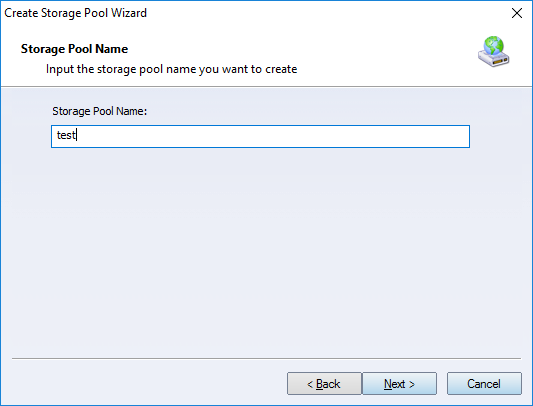
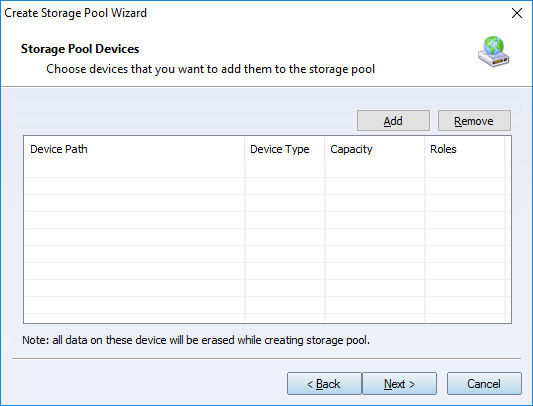
Enter the Storage Pool Name, then click Next to continue. Step 2. Add devices to the storage pool.
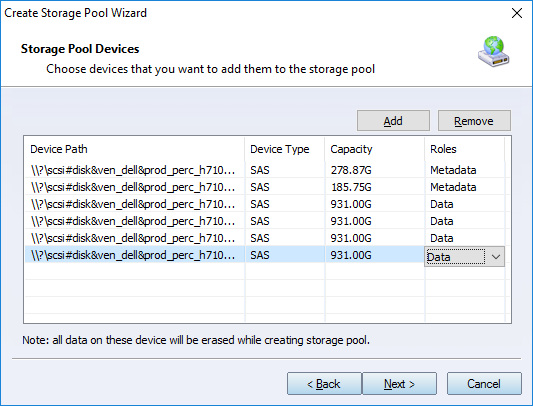
Click Add to select devices.
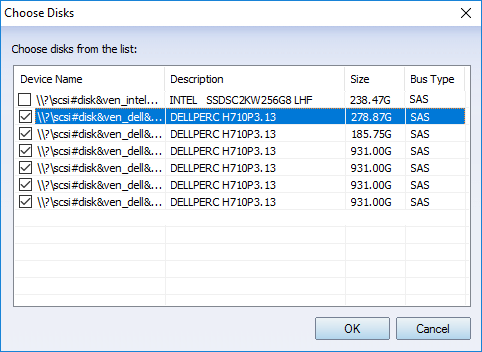
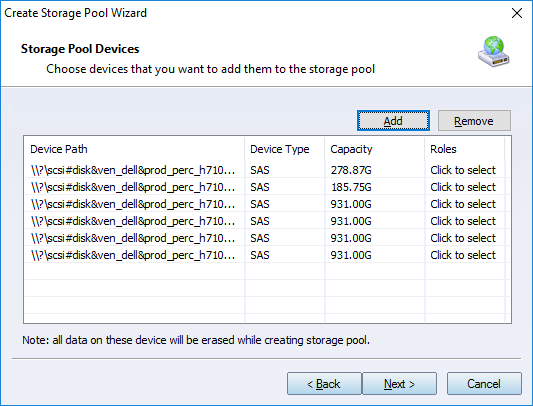
Select the devices you want to use and click OK to add them. Note: Make sure there is no important data on the selected disks. Any disk added to a new storage pool is erased during pool creation.
Click the Click to select combo box and choose the disk role for each device.
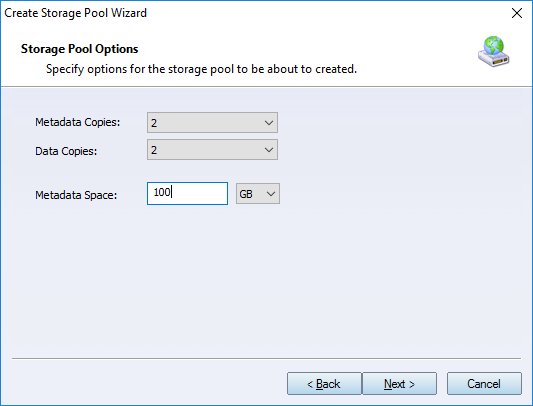
Note: Metadata should be placed on an SSD or NVMe device. Data disks can use standard SATA HDDs or SSDs. At least one metadata disk is required to create a storage pool. The minimum configuration is a single disk that serves as both metadata and data storage. Click Next to continue. Step 3. Configure the storage pool. Configure the pool type, stripe size, and initialization type.
Note: The metadata disk stores management data, including internal structures and snapshot metadata. You can specify the metadata size, and any remaining capacity on that disk can be used for data storage. Note: Metadata copies and data copies are important for protecting the storage pool against hardware failures. If you already have hardware RAID in place, you may choose to use a single copy. Click Next to continue. Step 4. Finish creating the storage pool.
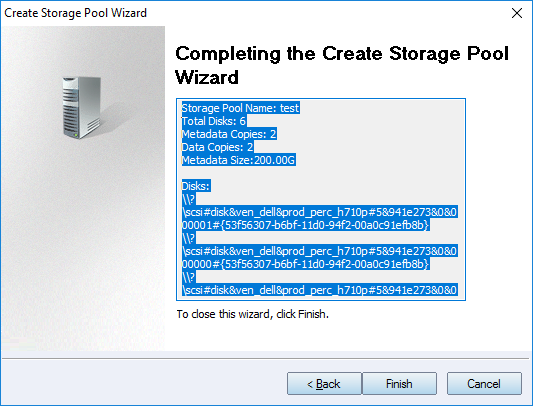
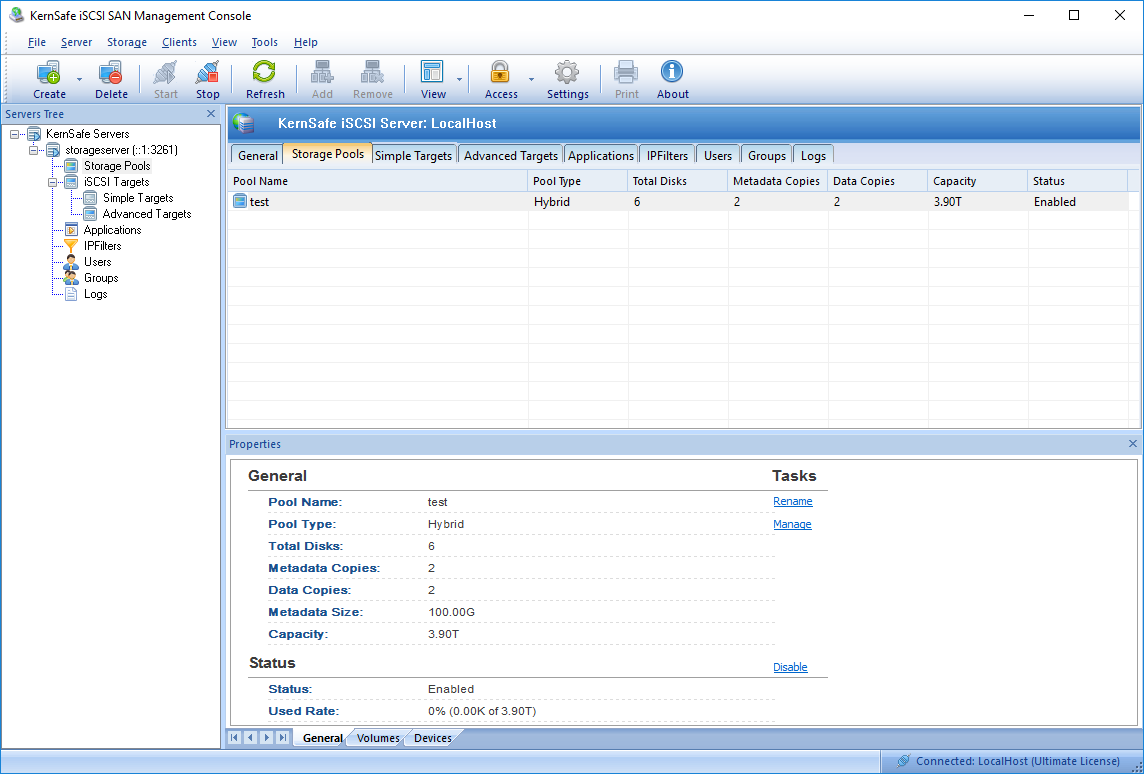
Review the detailed information in the text box. Click Back if you need to make changes. After the storage pool is created successfully, it appears in the Management Console as shown below:
| |

SUPPORT
- Forum
- Support Ticket
- [email protected]

- Voice Mail:
- +1 (518) 289-4888