|
This topic explains how to install KernSafe iSCSI SAN on Windows. For other platforms, see the online help:
KernSafe iSCSI SAN can be installed easily by following the steps in this section.
If a previous version of KernSafe iSCSI SAN is already installed, close all KernSafe iSCSI SAN applications before you continue.
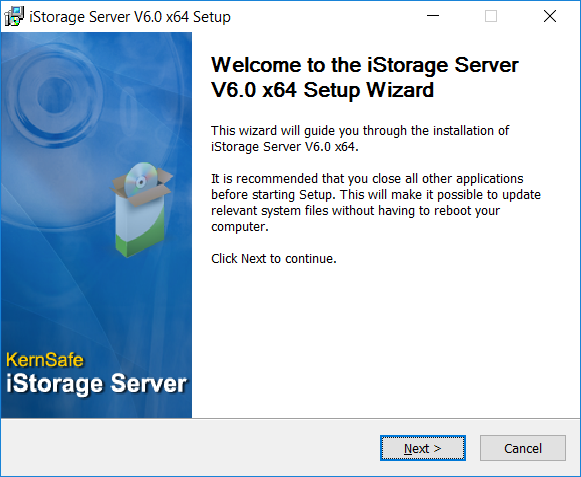
Step1: Welcome Window
Start the installation by double clicking the installer icon. The welcome window will be displayed.
Press the Next button to continue.
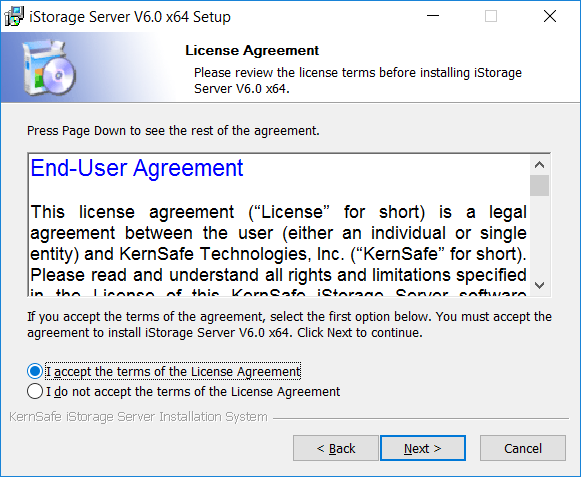
Step2: License Agreement window
Read the license agreement carefully. To continue the installation, select “I accept the terms in the License Agreement” and click Next. If you do not accept the agreement, select “I do not accept the terms in the License Agreement” and exit the installation procedure.
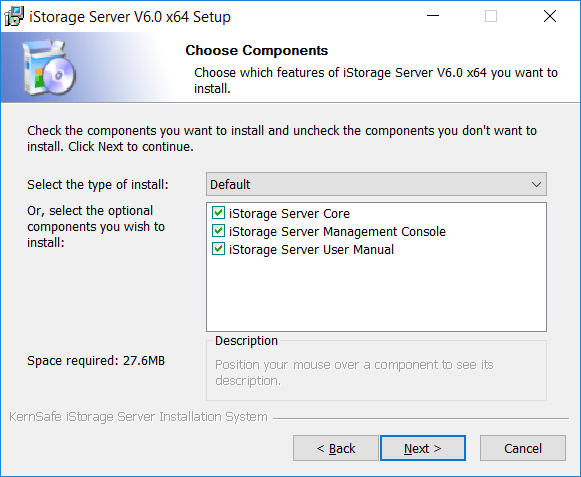
Step 3: Choose Components window
Please select the components that need to be installed and press the
Next button to continue.
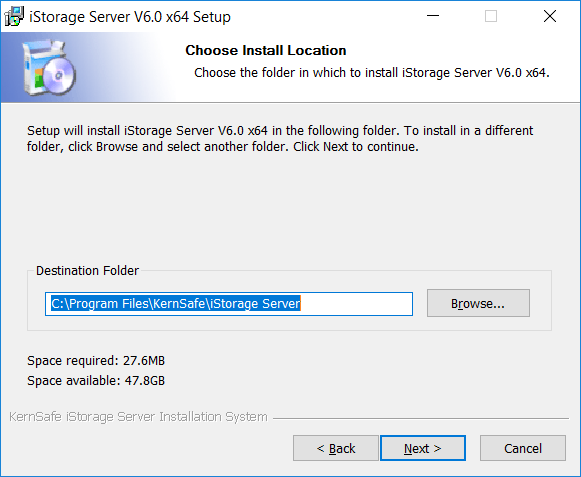
Step 4: Choose Install Location window
Please select the folder to install the software. By default, the installation folder is C:\Program Files\KernSafe\iStorage Server. To install the software
to another location, press the Browse… button to select the new location.
And then press the Next button to continue.
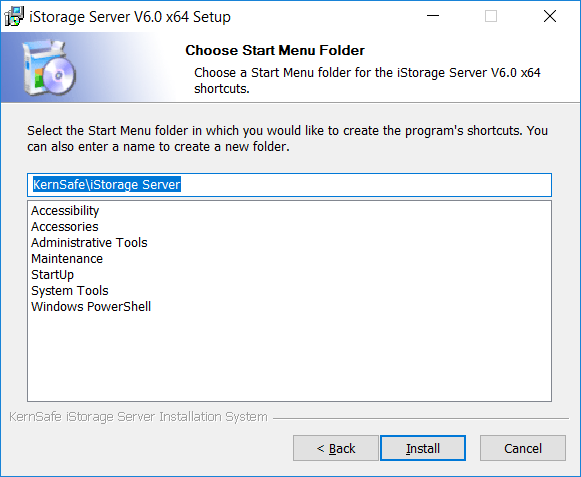
Step 5: Choose Start Menu Folder window
Specify the start menu folder and press the Install button to start the installation.
Step 6: Finish window
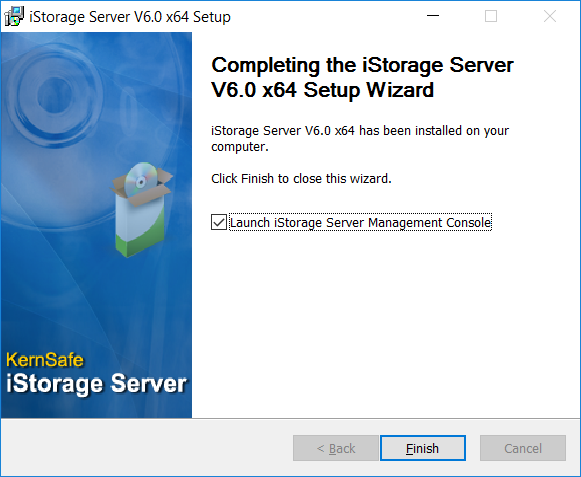
After installation is finished, press the Finish button to exit. The KernSafe iSCSI SAN has been
successfully installed to the computer.
|



